

Picture this: you open your inbox to find an urgent email from the ‘WordPress Security Team.’ It warns you about a critical vulnerability on your site and urges immediate action.
Panic sets in. Losing your website could mean losing customers, revenue, or years of dedicated work. But here’s the twist—this email isn’t legitimate.
It’s a scam crafted to lure you into clicking a harmful link.
Sadly, fake security emails are becoming increasingly common. Many users have fallen prey to these scams, inadvertently harming their websites.
This guide will help you distinguish between genuine and fake WordPress security emails.
You’ll discover how these scams operate, the warning signs to watch for, and the steps to take if you get a suspicious message. By the end, you’ll be equipped to protect your website effectively.
How These Fake WordPress Security Emails Operate
Scammers are becoming more sophisticated. They understand website owners’ security concerns and craft emails that look authentic.
Since WordPress is the most widely used website builder and highly secure, hackers struggle to exploit its code vulnerabilities. Consequently, they turn to deceiving site owners with counterfeit emails.
These messages may claim to be from the WordPress Security Team, your hosting provider, or a reputable security company.
Typically, the email contains:
- A warning about a vulnerability on your website.
- A mention of a security flaw identified by a name like “CVE-2025-45124.”
- An urgent call to action, such as clicking a link or downloading a security patch.
However, the link does not redirect to WordPress.org. Instead, it leads to a phishing site designed to steal your login credentials. Some emails also urge you to install a plugin infected with malware.
Once scammers gain access, they can insert backdoors, redirect your visitors to malicious sites, or lock you out entirely. This is why spotting fake emails early is vital.
Red Flags 🚩🚩: How to Recognize a Fake WordPress Security Email Before It’s Too Late
Detecting a fake WordPress security email isn’t always straightforward. Scammers use logos, polished formatting, and technical jargon to make their emails appear genuine.
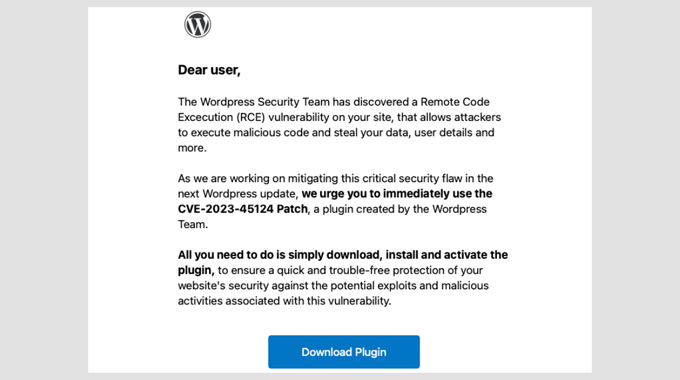
Nonetheless, certain obvious red flags reveal these scams. Here are the most common to watch out for:
- Suspicious Email Address: Check the sender’s domain carefully. Legitimate WordPress emails come from
@wordpress.orgor@wordpress.net. Any other domain indicates a fake email. - Urgent Language: Phrases like “Act now!” or “Immediate action required!” are intended to create panic.
- Poor Grammar and Formatting: Scam emails often contain typos, awkward wording, or inconsistent branding. You can compare them against previous genuine WordPress emails for accuracy.
- Links That Don’t Match the Destination: Hover over links (without clicking) to verify their URLs. If they don’t lead to
wordpress.org, avoid clicking. - Unexpected Attachments: WordPress never sends attachments in security-related emails. Any attached file indicates a scam.
- Requests for Passwords: WordPress will never ask you to send your password or login credentials via email.
Over time, we’ve seen all these tactics in action. One user accidentally revealed their login details by clicking a fraudulent link.
Their site was compromised within hours and redirected visitors to a phishing page. Stories like this highlight why vigilance and verification are essential.
Recognizing these red flags will empower you to handle suspicious emails with confidence.
Remember, spending a few seconds to verify an email can save you from hours or even weeks of headache restoring your site.
Unsure If a WordPress Security Email is Genuine? Here’s How to Confirm
Even the most cautious website owners can hesitate when receiving a convincing security email.
Since scammers continuously improve their tactics, verifying any security message before acting is crucial.
Here’s our recommended approach upon receiving a security-related email:
1. Verify Official WordPress Sources
WordPress posts security alerts on WordPress.org. If an email reports a serious vulnerability, confirm it on the official website first.
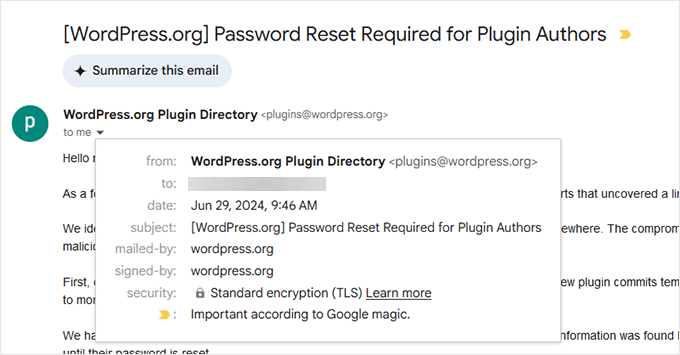
2. Inspect Email Sender and Signature
Authentic WordPress emails come from the wordpress.org domain, or occasionally from wordpress.net.
3. Compare with Previous WordPress Emails
If you have prior genuine WordPress security emails, compare the tone, format, and style.
Fake emails often contain awkward wording, mixed fonts, or odd spacing, whereas official ones are professionally crafted.
4. Check for a Corresponding Notice from Your Hosting Provider
Trusted WordPress hosting services like Bluehost, SiteGround, and Hostinger publish verified security updates on their websites. If your host makes no mention, the email is suspicious.
5. Hover Over Links Without Clicking
Before clicking any links, hover to see where they lead. URLs not pointing to wordpress.org or to your hosting company’s official site are untrustworthy.
Beware of deceptive domains resembling WordPress sites but are fake, like security-wordpress(.)org.
6. Use a WordPress Security Plugin
Plugins such as Wordfence and Sucuri monitor vulnerabilities and send authentic security alerts. If your plugin doesn’t report the issue, the email is likely fraudulent.
Once, a user forwarded a seemingly legitimate email that included a CVE number and the WordPress logo. But a quick check on WordPress.org revealed no alert, and inspecting the email header exposed a suspicious sender domain. It was a phishing attempt.
Following these quick checks helps you steer clear of scams. When in doubt, pause and verify—real alerts won’t vanish within hours.
If You Receive a Fake Security Email, Here’s What to Do
Identified a fake security email? Here’s how to respond safely.
The worst move is to panic and interact with the email. Instead, follow these best practices to safeguard your site and report the fraud.
🫸 Don’t Click Any Links
Even if the email looks genuine, avoid clicking links or opening attachments. If you already clicked a link, promptly change your WordPress password.
🕵️ Inspect Your Site for Suspicious Activities
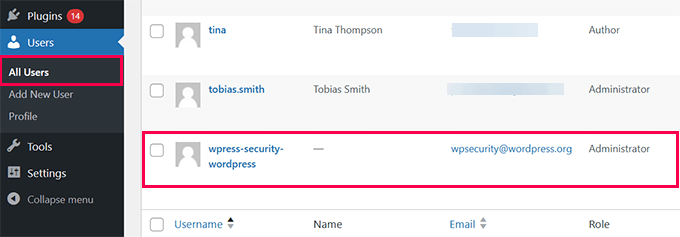
Log into your WordPress dashboard and check for unknown admin users, newly added plugins, or altered settings.
📨 Report the Email to Your Hosting Provider
Your web host usually has a security team that deals with phishing attempts. Contact their support and share details about the suspicious email.
🚩 Mark the Message as Spam
Flagging the email as spam helps your email provider improve filtering and prevents similar messages from reaching you.
Gmail, Outlook, and other major email services utilize sophisticated algorithms that benefit from user feedback to block scam emails effectively.
🔍 Run a Security Scan on Your Website
Use plugins like Wordfence or Sucuri to scan your WordPress site for malware and potential compromises. For instructions, check our guide on how to scan your WordPress site for malicious code.
We worked with a site owner who ignored a fake security email only to face repeated login attempts later. Fortunately, their Cloudflare (free) setup blocked those malicious login tries.
What to Do If You’ve Fallen for the Scam
Clicked a link in a fake email or installed a suspicious plugin? Don’t panic—you’re not alone.
Acting quickly can limit the damage significantly.
Follow these immediate steps:
1. Change Your Passwords: Update your WordPress login password instantly. Also change associated hosting, FTP, and database passwords to stop unauthorized access.
2. Remove Suspicious Admin Users: Access Users » All Users in your dashboard and delete any unknown administrator accounts.
3. Scan for Malware: Run a WordPress security scanner such as Wordfence or Sucuri to detect backdoors, malicious files, or unauthorized changes.
4. Restore a Clean Backup: If your site has been hacked, restore it from a backup taken before the infection.
It’s best to maintain backups with a plugin like Duplicator, which is secure, reliable, and offers easy restoration. Read our full Duplicator review for details.
If you don’t have backups, ask your hosting provider for assistance—most maintain backups and can help you recover.
5. Review Website Files
Using your hosting control panel or FTP client, look for recently modified files. Unknown PHP scripts with suspicious names such as wp-system.php, admin-logs.php, config-checker.php, random strings like abc123.php, or hidden folders within /wp-content/uploads/ might be backdoors.
6. Update WordPress and Plugins
Make sure WordPress core, themes, and plugins are updated to patch vulnerabilities. Go to Dashboard » Updates and apply the latest versions. Our guide on safely updating WordPress can help.
We once helped a small business restore their hacked site after malware injected by a fake patch caused phishing redirects. Luckily, a recent backup and password reset saved the day.
If your site is compromised, see our detailed guide: How to Fix a Hacked WordPress Site (Beginner’s Guide).
🎯Get Your Hacked WordPress Site Fixed!
Don’t want to stress over repairing a hacked site? Our WordPress security experts can clean and restore your website swiftly.
With our service, you get:
- 24/7 availability and fast turnaround
- Security scans and malware removal
- Affordable one-time fees with no hidden costs
Tips to Prevent Future Scams
Preventing fake security emails is as crucial as recognizing them. While scammers evolve, taking basic safety measures strengthens your site’s defense.
- Enable Two-Factor Authentication (2FA): Adding 2FA to your login prevents unauthorized access if your password gets stolen.
- Use Firewalls and Security Plugins: Combine a WordPress firewall like Cloudflare with security plugins such as Wordfence or Sucuri.
- Keep WordPress, Themes, and Plugins Updated: Regular updates patch vulnerabilities hackers may exploit.
- Verify Emails Before Responding: Always cross-check suspicious messages with WordPress.org and your hosting provider’s official communications.
- Educate Your Team: If others help manage your site, train them to recognize phishing attempts and report suspicious emails.
By adopting these practices, you’ll greatly reduce the chances scammers succeed and keep your WordPress site more secure.
Stay Ahead and Protect Your Website
Fake WordPress security emails can be alarming, but knowing how to identify them prevents harm.
Scammers thrive on fear and urgency, but by staying calm and informed, you can outsmart them 😎.
Next time you receive a doubtful email, take a moment to review details carefully—you are in control.
Maintain vigilance, keep WordPress updated, and use trusted security tools to make your site a difficult target for scammers.
Ready to enhance your site’s security? Check out our comprehensive WordPress security guide with detailed tips. You might also find our expert selection of the best WordPress security scanners for malware and hacks useful.
If you found this article helpful, please subscribe to our YouTube Channel for WordPress video tutorials. You can also follow us on Twitter and Facebook.