

Running several websites from a single WordPress installation sounds fantastic—until security concerns arise.
Many users worry that managing a WordPress multisite requires extra effort to keep it secure.
This worry is justified. We’ve witnessed how a single vulnerability can jeopardize every site within a multisite network.
Fortunately, WordPress multisite can remain secure if you implement the proper precautions.
We’ve been operating our own multisite setup for some time, and in this guide, we’ll share our proven WordPress multisite security tips to help safeguard your network.
What Is WordPress Multisite?
Think about managing multiple websites without juggling different logins or separate installations. That’s exactly the convenience WordPress multisite provides.
It’s a built-in feature enabling you to run multiple websites from a single WordPress installation, all accessible through one dashboard.
This configuration is widely used by organizations, educational institutions, and businesses managing numerous sites under one roof. It’s also popular for blog networks and flourishing online communities.
Getting started with WordPress multisite might sound complex, but it’s actually quite straightforward. We’ve simplified the process in our step-by-step multisite setup guide to make it easy for you.
While multisite is powerful, it comes with specific security challenges. Since all sites share the same core files, a single vulnerability can affect the entire network if not secured properly.
Is WordPress Multisite Secure?
Absolutely, WordPress multisite is very secure when managed correctly.
It’s part of the core WordPress platform, which is actively maintained and regularly updated to fix security issues.
However, multisite does introduce unique security concerns. Because all sites use the same core files and database, any weak point may affect the whole network.
We have encountered multisite setups where a minor plugin flaw compromised every connected site. This highlights the importance of proactive security to protect your entire network.
Rest assured that with appropriate measures in place, WordPress multisite can be as safe as a regular WordPress site. Let’s review how to protect your network effectively.
WordPress Multisite Security Tips
Securing a WordPress multisite isn’t just about locking things down; it’s about anticipating potential threats. We’ve noticed that minor lapses, like delayed updates or excessive admin privileges, may create vulnerabilities.
But securing a multisite network doesn’t have to be daunting. Implementing a few solid practices can significantly safeguard every site within your network.
Here are the key steps we recommend to enhance your WordPress multisite security confidently.
ℹ️Note: This article focuses on securing a WordPress multisite setup. For a more comprehensive security approach, we suggest checking out our ultimate WordPress security guide, covering essential practices for single and multisite WordPress environments.
1. Regularly Back Up Your WordPress Multisite
At WPBeginner, our first step when discussing WordPress security is always backups. It’s the most crucial defense against data loss.
We’ve seen how dependable backups can transform a potentially stressful incident into a minor hiccup. Whether dealing with malware, plugin malfunctions, or accidental deletions, backups let you restore your full network without data loss.
Many users trust their hosting provider’s automatic backups, but those backups may not always be reliable or easy to access when needed.
So, we encourage taking control of your backups yourself. It’s simpler than you might think with the right tools.
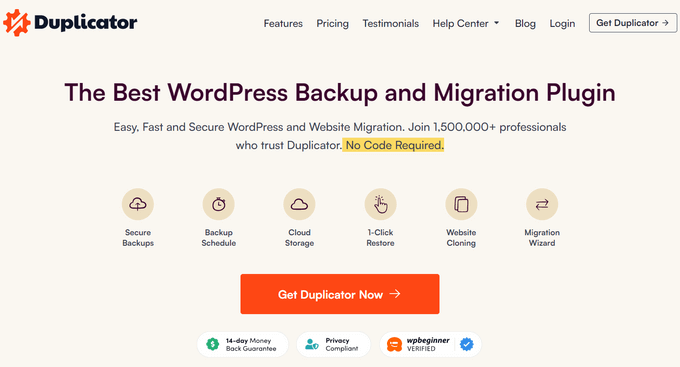
Our top recommendation for backing up your multisite network is Duplicator—a robust backup plugin that simplifies protecting your network.
Why Choose Duplicator?
- Enable scheduled automatic backups with ease.
- Safely save backups to cloud storage.
- Restore your entire multisite network with a single click.
Learn more about Duplicator’s features in our detailed review.
After installing Duplicator, it guides you through setup and lets you schedule backups that fit your needs.
Need assistance? Follow our step-by-step tutorial on backing up WordPress multisite.
Expert Tip: If managing backups and updates becomes overwhelming, consider outsourcing to professionals.
WPBeginner Maintenance Services offers comprehensive care—from backups to uptime and security monitoring.
Contact us today for a free consultation!
2. Select a Secure Hosting Provider Experienced with Multisite
Your hosting provider is crucial to your multisite network’s security. Not all hosts are optimized for multisite, and choosing poorly can expose your network to risks.
We’ve partnered with several hosts that deliver strong performance on secure platforms.
Optimal Hosting for Beginners
For newcomers to WordPress multisite, Bluehost is a great choice. They include a free domain, SSL certificate, and built-in security features.
Bluehost supports all WordPress multisite configurations—custom domains, subdomains, and directory sites. Plus, WPBeginner users get an exclusive discount starting at $1.99/month.
For full details, check out our Bluehost review, including performance tests and pros and cons.
For Established Multisites
As multisite networks grow, they demand more resources. For bigger sites, we recommend SiteGround.
Reasons to choose SiteGround include:
- Handles more traffic than typical shared hosting providers.
- Top-rated managed WordPress hosting service.
- Outstanding customer support, fast servers, and a smooth platform.
We host multiple websites, including WPBeginner, on SiteGround, finding it reliable for growth and success. Learn why we switched or see our in-depth SiteGround review.
Choosing a reputable host ensures your sites are protected from the ground up.
3. Restrict Super Admin Privileges
In a WordPress multisite network, the ‘Super Admin’ has full control over every site—they can install plugins, manage themes, and even delete entire sites.
We’ve come across networks where every site admin was given super admin access. This over-permissioning can be risky.
A single mistake or a compromised account with super admin rights can threaten the whole network.
Best practice is to limit super admin privileges to trusted individuals only.
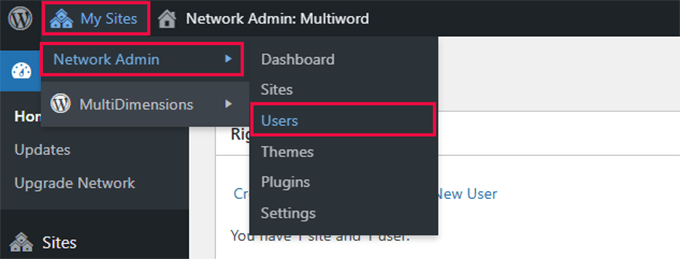
To manage this, visit Network Admin » Users » All Users and confirm that only essential team members have super admin status.
If your team is larger, consider using a plugin like Members to create user roles with customized permissions, allowing responsibilities without full control.
Learn more in our guide on WordPress user roles and permissions.
4. Use Strong Passwords and Enable Two-Factor Authentication
Many of us have used easily guessed passwords like password123 or a pet’s name. But on a WordPress multisite network, weak passwords pose serious threats.
We’ve seen cases where a hacked password compromised an entire multisite network, causing major headaches.
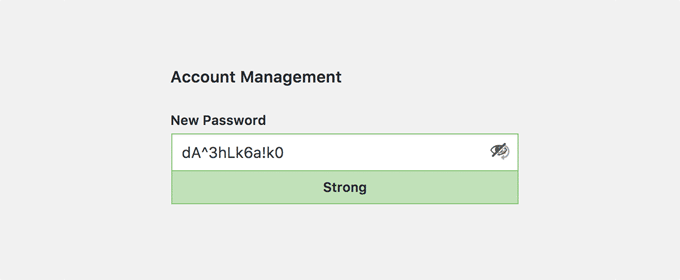
That’s why enforcing strong passwords network-wide is crucial. You can automate this by following our tutorial on forcing strong passwords in WordPress.
However, passwords alone aren’t enough nowadays.
Adding two-factor authentication (2FA) offers an extra layer of security, requiring a temporary code after entering a password—like a second lock for your login.
The WP 2FA plugin is a simple tool to help you set this up and secure your network easily.
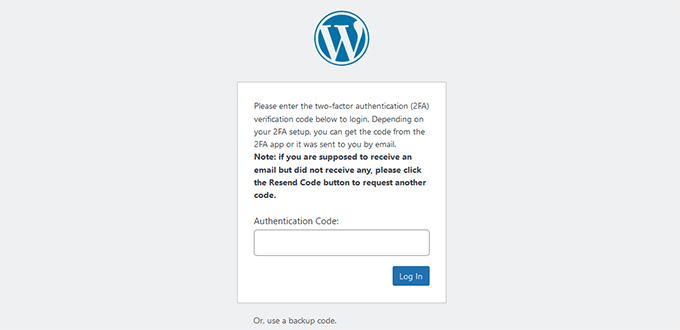
Need a walkthrough? Our step-by-step guide on adding two-factor authentication in WordPress has you covered.
5. Always Keep WordPress Core, Themes, and Plugins Updated
We understand that updating WordPress core, plugins, and themes can get tedious. But neglecting updates can expose your network to serious vulnerabilities.
There have been many situations where outdated plugins served as an entry point for attackers, resulting in network-wide issues.
The good news: staying updated doesn’t have to be difficult.
WordPress regularly patches vulnerabilities and enhances performance with updates. Keeping your multisite network current is vital for security.
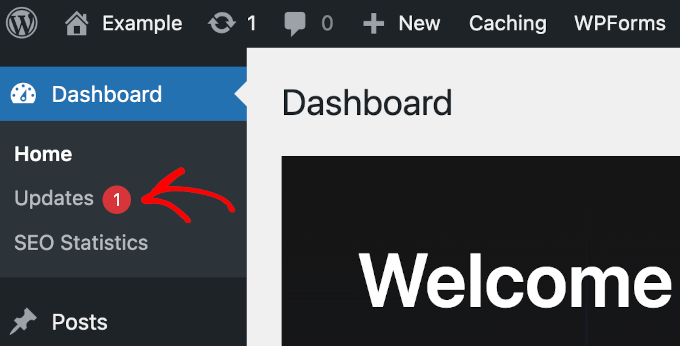
Start by keeping your WordPress core updated. Follow our guide on how to update WordPress safely.
Don’t overlook plugin and theme updates; they require regular attention too. Read our tutorial on how to update WordPress plugins properly.
6. Implement a WordPress Firewall
Think of a WordPress firewall as a security guard stationed at your multisite network’s gate, stopping threats before they even arrive.
At WPBeginner, we rely on Cloudflare, which has dramatically improved our security. It blocks large-scale DDoS attacks, spam bots, and suspicious logins without slowing our site. For more info, see our case study on why we switched to Cloudflare.
Best of all, Cloudflare offers a free plan, letting you add this protection without any cost.
If you want to start, check out our complete tutorial on setting up Cloudflare with WordPress.
For even stronger security, consider dedicated WordPress security plugins like Sucuri or Wordfence. They provide features such as malware scanning and activity logging, bolstering your multisite network’s safety.
7. Control Plugin and Theme Installations
In WordPress multisite, only super admins can install plugins and themes network-wide. Individual site admins can only activate plugins already installed by the super admin.
Allowing unrestricted plugin access can introduce risks—such as insecure plugins causing vulnerabilities across multiple sites. Restricting plugin and theme installations reduces these threats.
The safest method is to let trusted super admins handle installations and only activate well-reviewed, secure plugins network-wide.
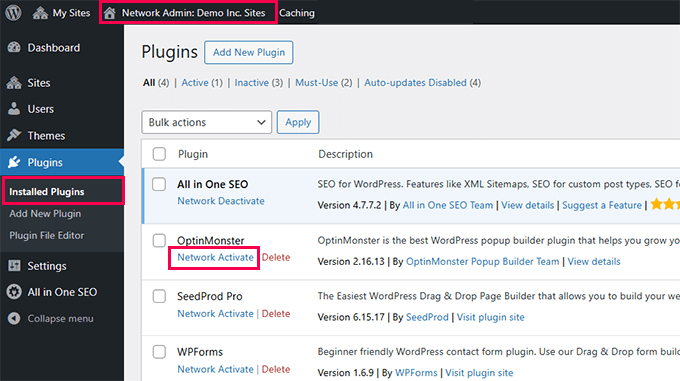
If you want to understand how plugin activation works in multisite, see our guide on network activating plugins on WordPress multisite.
8. Enable Activity Monitoring and Logging
Tracking user actions in a WordPress multisite network is essential for security. Even small, unnoticed changes—like plugin disablement or permission tweaks—can cause vulnerabilities.
That’s why we recommend a reliable activity logger like WP Activity Log. This helps monitor user logins, content edits, and other activities so you can spot suspicious behavior quickly.
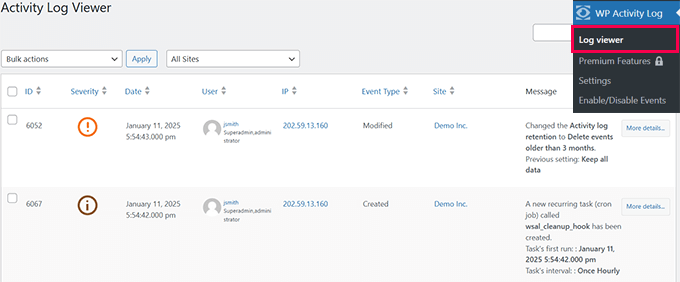
With this tool, you can:
- Track plugin and theme activations or deactivations.
- Monitor successful and failed user login attempts.
- Review edits to content and permission changes.
For setup guidance, check out our tutorial on monitoring user activity in WordPress.
Common WordPress Multisite Security Mistakes
Despite good intentions, it’s easy to make mistakes that weaken your WordPress multisite security. Small errors can lead to serious risks.
Here are common pitfalls to avoid:
- Giving Too Many Super Admins: This raises the chance of accidental or malicious changes. Keep this role limited to trustworthy people.
- Using Simple Passwords: Weak passwords are an easy target for hackers. Enforce strong passwords and implement two-factor authentication.
- Neglecting Updates: Outdated WordPress core, themes, and plugins increase vulnerability. Always update promptly.
- Relying Only on Host Backups: Hosting backups might not be reliable or easy to access. Maintain your own offsite backups with tools like Duplicator.
- Installing Untrustworthy Plugins and Themes: These can introduce security holes. Only use trusted sources and restrict installation privileges.
By avoiding these errors, you improve the security of your multisite network. The essential strategy is being proactive with your security practices.
Final Thoughts 💭
While securing a WordPress multisite network may initially seem daunting, it becomes manageable by following the right steps. Through our experience with many multisites, we’ve seen how preventative security can avert serious issues.
Set up regular backups, restrict super admin access, and use security tools like Cloudflare and WP Activity Log to create a safer environment for all sites.
Keep in mind that security is an ongoing process. Be vigilant: update your software, review user permissions, and monitor activities regularly.
Apply these recommendations, and you’ll be well positioned to operate a secure and stable WordPress multisite network.
Bonus Resources for WordPress Multisite Security
Here are additional resources to help maintain your WordPress multisite network:
We hope this guide enhanced your understanding of WordPress multisite security. You might also be interested in our WordPress troubleshooting guide or common maintenance task tutorials.
If you enjoyed this article, please subscribe to our YouTube Channel for WordPress video tutorials. You can also follow us on Twitter and Facebook.